March 28, 2026
How to Edit Real Estate Photos: Step-by-Step Tutorial
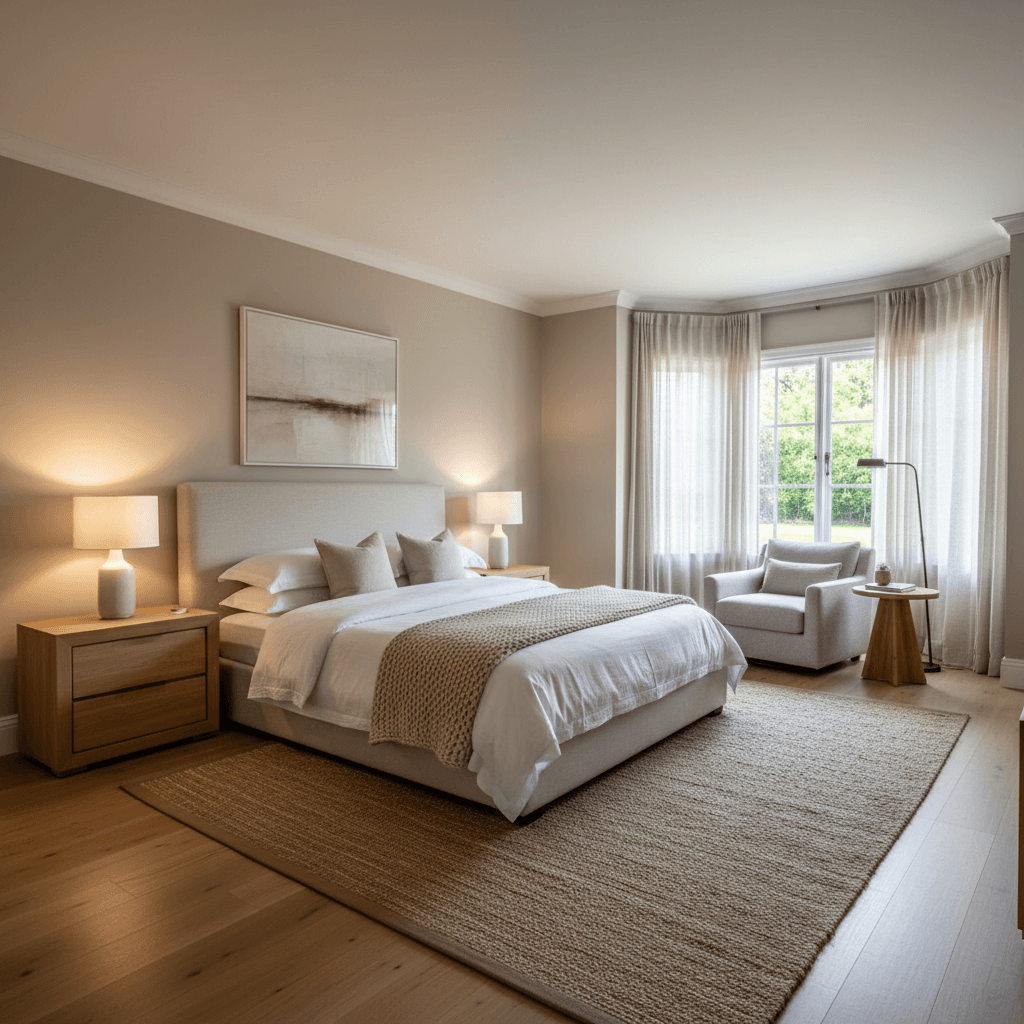
Properties with professional-quality photos sell 32% faster and can command higher prices, according to data tracked across MLS platforms. But "professional quality" isn't just about the camera — it's about what happens after the shutter clicks. Post-processing is where good photos become listing photos that generate clicks and showings.
This guide walks through the complete editing workflow, step by step. Whether you use Lightroom, Photoshop, or AI tools, the sequence matters. Each step builds on the previous one, so skipping ahead or editing out of order creates more work and worse results.
The 9-Step Real Estate Photo Editing Workflow
Step 1: Import and Cull
Import your RAW files into Lightroom (or your editor of choice) and immediately cull. For each room, you likely shot 3-5 angles. Select the single best composition for each space — the one with the best natural light, straightest verticals, and most flattering perspective. Delete or reject the rest.
A typical residential listing needs 25-35 final images. Over-shooting is fine; over-delivering is not. Buyers don't want to scroll through 80 photos. Keep only what sells the property.
Step 2: Lens Correction
Apply lens correction profiles to fix barrel distortion and chromatic aberration. In Lightroom, this is a one-click operation under the Lens Corrections panel — check "Enable Profile Corrections" and "Remove Chromatic Aberration." Wide-angle lenses used in real estate photography produce noticeable barrel distortion, especially below 20mm. Uncorrected, this makes walls curve and rooms feel warped.
Step 3: Perspective Correction
Straight verticals are the hallmark of professional real estate photography. Even a slight camera tilt makes walls converge, and buyers subconsciously read this as the room being uneven or poorly constructed. In Lightroom, use the Transform panel — the "Auto" or "Vertical" correction handles most cases. For stubborn perspectives, use the Guided Upright tool to manually set vertical and horizontal lines.
ListingScene's AI perspective correction automates this step entirely. Upload a photo with leaning verticals and the AI straightens them while preserving the natural look of the room.
Step 4: Exposure and White Balance
Real estate photos need to be bright and inviting without looking artificially lit. Start with white balance — if you shot with a fixed Kelvin value (recommended), your images should be consistent. If not, manually set the temperature to around 5200-5500K for neutral daylight.
For exposure, aim for bright but not blown. Lift the exposure until the room feels airy and open, then check your histogram — you want data approaching but not clipping the right edge. Recover highlights on bright windows and lift shadows in darker corners.
Mixed color temperatures are the most common white balance problem in real estate. Daylight from windows (5500K) mixing with tungsten bulbs (3200K) creates rooms that are half blue, half orange. ListingScene's color cast removal fixes this automatically by analyzing and normalizing the light sources in each image.
Step 5: HDR Blending
If you shot bracketed exposures (2-3 shots at different exposures), merge them now. In Lightroom, select the bracketed set, right-click, and choose "Photo Merge > HDR." Enable "Auto Align" and "Deghost" if there was any movement between frames.
HDR blending recovers detail in bright windows while keeping interiors well-exposed. Done subtly, it creates a balanced, natural-looking image. Done aggressively, it creates the dreaded "HDR look" — halos around windows, unnatural local contrast, and a painterly quality that screams amateur. Keep the HDR merge on its default settings and resist the urge to push the "Amount" slider.
Step 6: Sky Replacement
Overcast or blown-out skies are unavoidable — you can't reschedule a shoot every time it's cloudy. Gray skies make even beautiful properties look dull and depressing in exterior photos.
In Photoshop, sky replacement is a multi-step process: select the sky area, mask it, drop in a replacement sky, and blend the edges to avoid halos. Adobe's built-in Sky Replacement tool (Edit > Sky Replacement) handles simple cases but often struggles with trees and complex rooflines.
ListingScene's blue sky replacement handles this in one click. Upload a photo with an overcast sky and get back a version with a natural blue sky and realistic clouds, properly matched to the lighting in the rest of the image.
Step 7: Decluttering
Sometimes you can't physically remove everything before the shoot. Personal items, visible cables, trash bins at the curb, a neighbor's car in the driveway — these distractions pull attention from the property. In Photoshop, use Content-Aware Fill or the Clone Stamp to remove unwanted objects. This is time-intensive, especially for complex removals.
ListingScene's declutter feature uses AI to identify and remove common visual distractions automatically. It's especially useful for occupied homes where the seller couldn't fully stage before the shoot.
Step 8: Color and Contrast
Final color adjustments give your photos punch without looking over-processed. In Lightroom:
- Clarity: +5 to +15 for subtle midtone contrast. Avoid going above +20 — it creates an HDR-like effect.
- Vibrance: +5 to +10 to boost muted colors without oversaturating already-vivid ones.
- Saturation: Leave at 0 or go very slightly positive. Over-saturation is the most common amateur mistake in real estate editing.
- Tone curve: A very gentle S-curve adds depth. Pull shadows down slightly, push highlights up slightly.
Step 9: Export for MLS
Most MLS systems require JPEG format with specific size constraints. Based on current MLS standards:
- Format: JPEG (93% of MLS images are submitted in JPEG).
- Resolution: Minimum 1024x768 pixels, recommended 2048x1536 or higher.
- Aspect ratio: 4:3 or 3:2, landscape orientation.
- File size: Between 100KB and 3MB per image (some platforms accept up to 10MB).
- Color profile: sRGB for consistent display across devices and browsers.
- No watermarks or overlays: MLS rules prohibit agent logos, contact info, or text on listing photos.
In Lightroom, create an export preset with these settings so every listing goes out in the correct format without thinking about it.
The Lightroom Workflow for Real Estate
If you're editing in Lightroom, here are the specific settings that work well as a starting point for real estate interiors:
- White Balance: 5200-5500K (adjust if shooting under mixed lighting).
- Exposure: +0.3 to +0.7 (most interiors benefit from a slight lift).
- Highlights: -40 to -70 (recover window brightness).
- Shadows: +30 to +50 (open up darker corners).
- Whites: +10 to +20 (add brightness without clipping).
- Blacks: -5 to -10 (maintain depth).
- Clarity: +8 to +12.
- Vibrance: +5 to +10.
Create this as a Develop Preset and apply it to all imported images as a starting point. Then fine-tune individual shots as needed. This alone saves 2-3 minutes per image.
The AI Shortcut
If you're a real estate agent editing your own photos — not a professional photographer — the Lightroom workflow above might feel overwhelming. Steps 3 through 7 (perspective correction, exposure balancing, sky replacement, and decluttering) are the most time-consuming and require the most skill.
ListingScene handles these steps automatically. Upload your photos, select the enhancements you need, and get results in seconds. The AI applies perspective correction, fixes lighting and color casts, replaces gray skies, and removes clutter — the exact steps that take 5-10 minutes per image in Lightroom and Photoshop.
For a 30-photo listing, that's the difference between 2.5-5 hours of manual editing and about 5 minutes of AI processing.
Common Mistakes to Avoid
- Over-HDR processing: Halos around windows, unnatural local contrast, and a "painterly" look. If it looks like a video game screenshot, you've gone too far.
- Over-saturation: Grass that glows neon green, skies that look like a screensaver. Real estate photos should look better than reality, not like a different reality.
- Inconsistent editing: Some photos warm and bright, others cool and dark. Buyers notice inconsistency and it reads as unprofessional. Apply the same base preset to all images and fine-tune from there.
- Making rooms look unrealistically large: Ultra-wide angles and heavy perspective distortion set false expectations. Buyers who feel misled by photos don't make offers — they lose trust.
- Forgetting to check on mobile: Over 60% of listing views happen on phones. Your carefully edited photos need to look good at 375 pixels wide, not just on your 27-inch monitor.
Build Your Workflow
The best editing workflow is one you can execute consistently. Whether that's a Lightroom preset, a Photoshop action set, or an AI-powered tool like ListingScene, consistency matters more than perfection on any individual image. Build a repeatable process, apply it to every listing, and your listing photos will outperform the competition.